

SENCLUB / AI SPACE CREATION
AI space creation: start with an idea
Start with what you want to do in the space, then choose a build path. A reading corner, music room or small display space is enough for a first idea.
Updated 9 October 2026 · Screenshots: mainland China web app
1. Make three concrete choices
- Purpose: reading, resting, music or a collection? Focus on one use first.
- Mood: bright, warm or quiet? Pick two or three qualities to guide the room.
- Objects: identify the essential furniture and personal items before filling the remaining space.
2. Use the available build paths
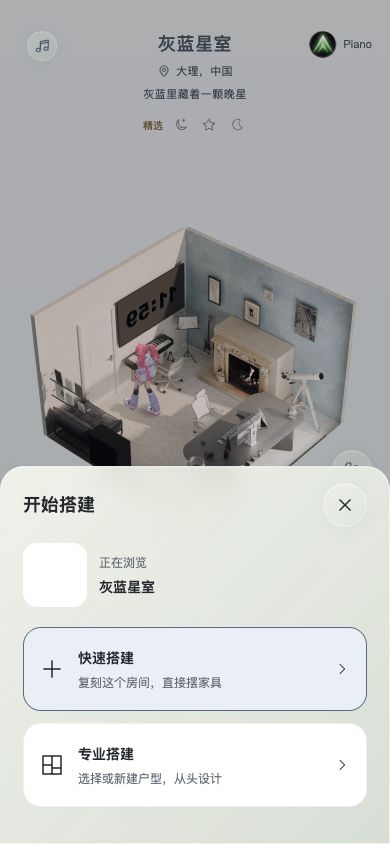
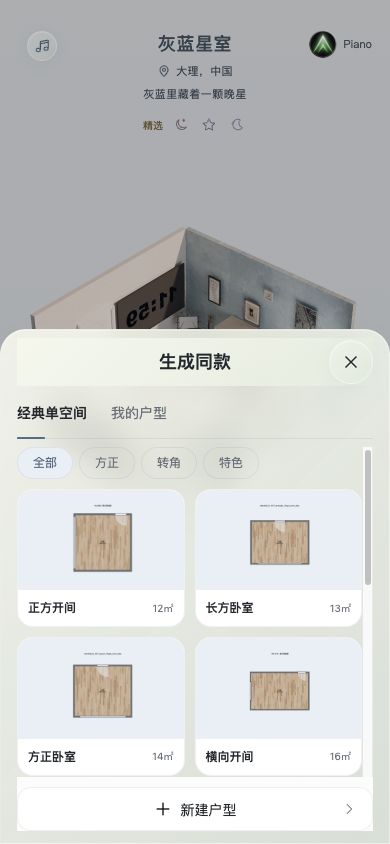
Tap the plus button while viewing a room. Quick build starts from the current room; professional build opens a floor-plan selection or creation flow. The current interface includes classic single rooms and your floor plans.
Quick build is not a promise that one sentence will produce any complete scene. Editable source data, account access and feature availability affect the next steps.
3. Refine and review each result
Arrange the main furniture before adding decoration. For any AI tool available in your interface, check its required inputs, cost notice and task status before submitting. A processing preview is not a completed result.
If generation fails or the result does not fit, preserve the work you already have and use the recovery or retry options shown. Review the layout, scale and relationships between objects yourself.
Current feature scope
The screenshots show the mainland China web app. Available AI tools, editable assets and platform support may differ. A separate international service is not yet fully launched.